
Active directory automation is the process of using scripts and tools to manage user accounts, groups, and permissions within Active Directory (AD) without manual intervention. For IT administrators across India's growing enterprise sector, this shift from GUI-based management to scripted workflows is no longer optional. Automating AD tasks using PowerShell or Ansible can reduce manual effort by up to 70% in enterprise environments. That figure represents thousands of hours reclaimed from repetitive provisioning, password resets, and group updates every year.
What is active directory automation and why does it matter?
Active directory automation, known in formal IT governance as directory services automation, replaces point-and-click administration with repeatable, auditable code. The standard industry term for this practice is identity lifecycle management. It covers everything from automated user provisioning when a new employee joins, to account disabling when they leave.
The compliance argument is equally strong. Scripted automation creates an audit trail that manual GUI actions simply cannot produce. Every change is logged, timestamped, and attributable. For organisations subject to ISO 27001, SEBI IT governance guidelines, or internal audit requirements, that trail is the difference between passing and failing a review.
Two toolsets dominate AD workflow automation in 2026: Microsoft's Active Directory PowerShell module (part of RSAT) and Ansible with the microsoft.ad collection. Both are free. Both integrate with existing Windows Server infrastructure. The choice between them depends on whether your team prefers imperative scripting or declarative configuration management.

What tools and prerequisites do you need?
Getting the environment right before writing a single line of code prevents most common failures. The table below maps each prerequisite to its purpose.
| Prerequisite | Purpose |
|---|---|
| RSAT (Remote Server Administration Tools) | Provides the ActiveDirectory PowerShell module on Windows 10/11 admin workstations |
Ansible microsoft.ad collection | Enables agentless, declarative AD management from Linux or Windows control nodes |
| Dedicated service account | Runs automation tasks without using personal or domain admin credentials |
| CSV templates | Standardises bulk user import data for consistent provisioning |
| PowerShell 5.1 or 7.x | Required runtime for all AD cmdlets and pipeline operations |
Sysadmins use RSAT and Ansible microsoft.ad modules to manage thousands of user objects programmatically, with built-in audit logging and error handling that GUI tools cannot match.
The permissions question is critical. Most automation guides tell you to use a domain admin account for simplicity. That is the wrong approach.
- Create a dedicated service account with delegated permissions scoped to specific Organisational Units (OUs).
- Grant only the rights the script actually needs: create user, reset password, modify group membership.
- Delegated permissions scoped to target OUs reduce the blast radius if a script error or credential compromise occurs.
- Store service account credentials in a secrets manager or Windows Credential Manager, never in plain-text scripts.
- Review delegated permissions quarterly and remove any that are no longer required.
Pro Tip: Use Get-ADUser with the -Credential parameter to test your service account's effective permissions before deploying any automation script to production.
How do you automate common AD tasks step by step?
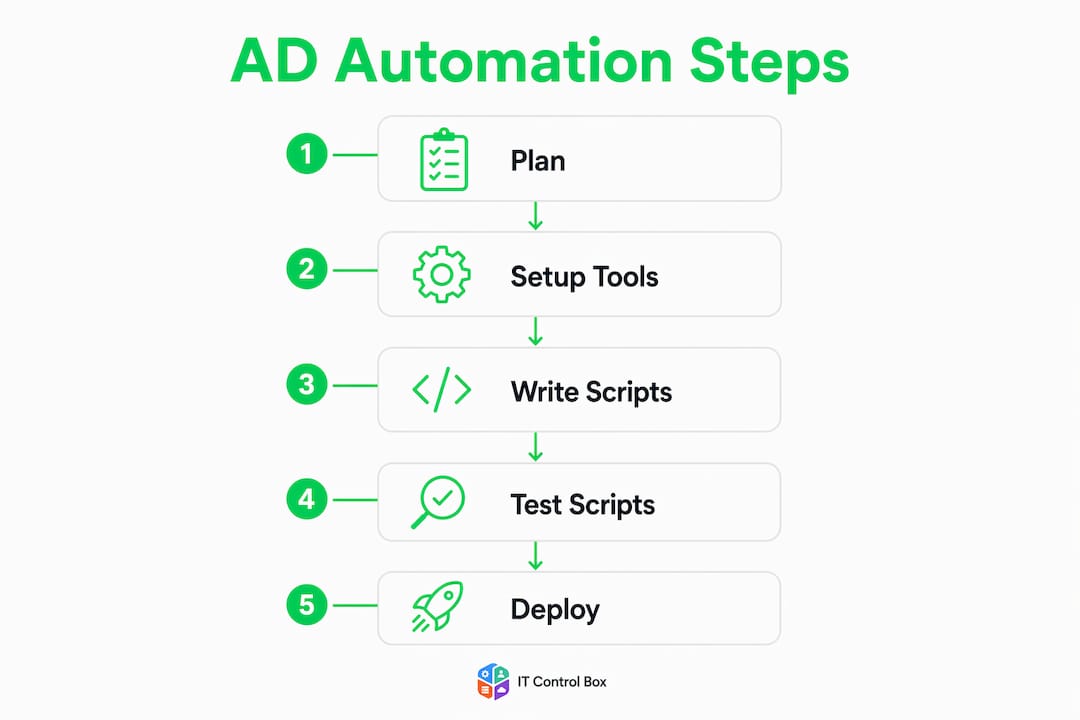
The most frequent requests from IT teams are bulk user creation, group membership management, and account lifecycle actions. Each follows a clear pattern.
-
Prepare your CSV file. Define columns for
GivenName,Surname,SamAccountName,OU,Department, andPassword. Validate the file with a PowerShell schema check before import. A malformed CSV is the single most common cause of bulk provisioning failures. -
Run the import loop. Use
Import-Csvpiped intoNew-ADUser. Wrap each iteration in atry/catchblock and write errors to a separate log file. This way, one bad record does not abort the entire batch. -
Manage group memberships. PowerShell's
Add-ADGroupMember,Set-ADGroup, andRemove-ADGroupMemberhandle the full lifecycle. Ansible'smicrosoft.ad.groupmodule achieves the same result declaratively, which is easier to version-control and peer-review. -
Disable and remove accounts. Tie account disabling to your HR system's offboarding trigger. A scheduled PowerShell task can query a CSV export from your HRMS each morning and disable any account whose employee status is marked inactive. Bulk operations via CSV imports go well beyond what the GUI supports, including recursive group membership resolution.
-
Query large directories efficiently. PowerShell's
Get-ADUserrequires LDAP filters and paging to handle directories with tens of thousands of accounts without memory exhaustion. The filter(userAccountControl:1.2.840.113556.1.4.803:=2)identifies all disabled accounts server-side, which is far faster than pulling every object and filtering in PowerShell. -
Log everything. Write a structured log entry for every action: timestamp, account affected, action taken, result, and the script version that ran. This log becomes your compliance evidence.
Pro Tip: Run all new automation scripts in -WhatIf mode first. PowerShell's -WhatIf parameter shows exactly what would change without making any actual modifications, which is invaluable for validating bulk operations before they touch production.
How does automation enforce security and compliance?
Security-focused AD automation goes beyond provisioning. It actively monitors the directory for policy violations and vulnerabilities.
- Stale account detection. A scheduled script queries accounts with no logon activity in 90 days and flags them for review or automatic disabling. Stale accounts are a primary attack vector in credential-based intrusions.
- Password policy enforcement. Automated health checks confirm that all accounts comply with your organisation's password expiry settings and flag exceptions before they become audit findings.
- Kerberoasting detection. Security automation frameworks can detect Kerberoasting vulnerabilities quickly, reducing the window for credential-based attacks. A script that queries service accounts with SPNs and checks their password age is a straightforward first defence.
- Drift detection. Automated drift detection scripts compare current AD state against a predefined baseline and flag unauthorised mutations immediately. This prevents identity debt from accumulating silently over months.
- Compliance audit trails. Every scripted change produces a log entry. Manual GUI changes do not. This asymmetry alone is a strong argument for automating any process that touches privileged accounts.
Automation is not simply a speed advantage. It is a compliance enabler. Scripted processes produce enforceable, logged records that manual administration cannot replicate. For IT teams operating under regulatory scrutiny, that audit trail is the most valuable output of any automation programme.
Using least-privilege delegation instead of domain admin rights for automation tasks vastly reduces the risk of domain-wide compromise. High-privileged automation accounts represent a tier-0 risk if compromised.
What are the best practices for sustainable AD automation?
Building automation that works reliably for years requires discipline beyond the initial script.
- Handle timeouts and memory issues. Large AD queries without paging controls will exhaust memory on the admin workstation. Always use the
-ResultPageSizeparameter withGet-ADUserand set a sensible timeout on remote sessions. - Maintain a read-only emergency interface. Removing all graphical tools can delay urgent incident responses. A modern, read-only browser-based interface for manual emergency interventions preserves rapid response capability during outages. This hybrid approach is the recommended standard.
- Avoid overprivileged service accounts. The highest risk in AD automation comes from service accounts with excessive permissions. Audit service account rights every six months and remove anything unnecessary.
- Schedule with notifications. Use Windows Task Scheduler or a CI/CD pipeline to run scripts on a defined schedule. Configure email or Teams alerts for any script that exits with an error code.
- Document and version-control everything. Store all scripts in a Git repository with meaningful commit messages. Every change to a production script should go through a pull request review.
Pro Tip: Always build a rollback script alongside every automation script. If a bulk group membership change goes wrong at 2 AM, you want a tested rollback ready to run, not a manual reconstruction from memory.
Key takeaways
Active directory automation delivers its greatest value when it combines consistent provisioning, security monitoring, and auditable compliance trails within a least-privilege framework.
| Point | Details |
|---|---|
| Start with least privilege | Create dedicated service accounts with delegated OU permissions, never domain admin rights. |
| Use LDAP filters for scale | Apply server-side filters in Get-ADUser to avoid memory exhaustion in large directories. |
| Automate compliance trails | Scripted changes produce audit logs that manual GUI actions cannot replicate. |
| Detect drift continuously | Run baseline comparison scripts regularly to catch unauthorised AD mutations before they compound. |
| Keep a manual fallback | Maintain a read-only interface for emergency interventions alongside all automated workflows. |
Automation works best when you respect its limits
I have spent years watching IT teams in India and the UK deploy AD automation with enormous enthusiasm, only to hit the same wall six months later: a runaway script with domain admin credentials that disabled 400 accounts overnight. The technical fix is straightforward. The organisational lesson takes longer to absorb.
The most effective AD automation programmes I have seen share one characteristic: they treat automation as a controlled process, not a fire-and-forget solution. Scripts run under tightly scoped service accounts. Every production change goes through a staging environment first. And critically, someone on the team still knows how to operate the directory manually when things go wrong.
The future of directory services automation points firmly towards declarative configuration management, where tools like Ansible define the desired state and continuously reconcile against it. That model aligns naturally with compliance requirements because the desired state is itself a documented, version-controlled artefact. Pair that with drift detection and you have a system that is both fast and auditable.
The least-privilege principle is not a bureaucratic inconvenience. It is the single most effective control you have against a compromised automation account becoming a domain-level incident. Treat it as a non-negotiable constraint, not a best-effort guideline.
— Mahesh
How Itcontrolbox supports identity and device automation
Itcontrolbox is an enterprise IT automation platform built specifically for identity lifecycle management and device management at scale. It reduces manual administrative effort by up to 70% and enforces security compliance without per-user fees, making it well-suited for Indian enterprises managing large AD environments across multiple sites.

The platform connects on-premise Active Directory to cloud services through a secure API-driven architecture, supporting zero-touch deployments and automated password rotations. Compliance audit trails are built in, not bolted on. For IT teams looking to move beyond manual scripting and adopt a governed identity automation platform, Itcontrolbox provides the structure and controls that enterprise-scale management demands. You can also review the full product offering at the Itcontrolbox solutions page to assess fit for your environment.
FAQ
What is active directory automation?
Active directory automation is the use of scripts and tools such as PowerShell or Ansible to manage user accounts, groups, and permissions in Active Directory without manual intervention. It covers provisioning, deprovisioning, group management, and compliance monitoring.
Which tool is better for AD automation: PowerShell or Ansible?
PowerShell is the standard for Windows-native AD scripting, while Ansible's microsoft.ad collection suits teams that prefer declarative, agentless configuration management. The right choice depends on your team's existing skills and whether you need cross-platform orchestration.
How do I automate bulk user creation in Active Directory?
Use Import-Csv in PowerShell to read a structured CSV file, then pipe each row into New-ADUser inside a try/catch loop that logs errors without stopping the batch. Validate the CSV schema before running the import against production.
Why should I avoid using domain admin accounts for automation?
Domain admin credentials in an automation script represent a tier-0 security risk. If the script or its stored credentials are compromised, an attacker gains full domain control. Delegated service accounts scoped to specific OUs limit the blast radius to the targeted containers only.
How does AD automation support compliance requirements?
Every scripted change produces a timestamped, attributable log entry that manual GUI actions do not generate. This audit trail satisfies requirements under frameworks such as ISO 27001 and supports internal audit reviews by providing enforceable, logged records of all identity changes.